What Are the Top Types of Interactive Screens in 2026?
Interactive Screens now shape how people learn, shop, work, and find their way through public spaces. In 2026, the best choice depends less on novelty than on the task, setting, and audience. A bright lobby display must remain readable in changing light; a classroom screen needs responsive touch and clear writing tools. Fit matters more. Jakob Nielsen, a leading usability expert, defines usability this way: “Usability is a quality attribute that assesses how easy user interfaces are to use.” That principle is a useful test for every screen type, though it cannot capture every practical concern.
This guide examines the main options: interactive flat panels for classrooms and meeting rooms, self-service kiosks for transactions and wayfinding, touch-enabled video walls for shared information, and transparent or flexible displays for more specialized settings. Each offers different strengths. Kiosks can reduce queues, but confusing menus can create new friction. Video walls attract attention, yet they may be excessive where a simple panel would work. We’ll compare touch response, visibility, durability, accessibility, connectivity, and maintenance—not just screen size or resolution. Some newer formats are promising, but their value depends on real-world use, not impressive demonstrations. The aim is a grounded overview, not a universal ranking. A screen is only useful when people can operate it confidently.
How Interactive Screens Are Defined and Classified in 2026
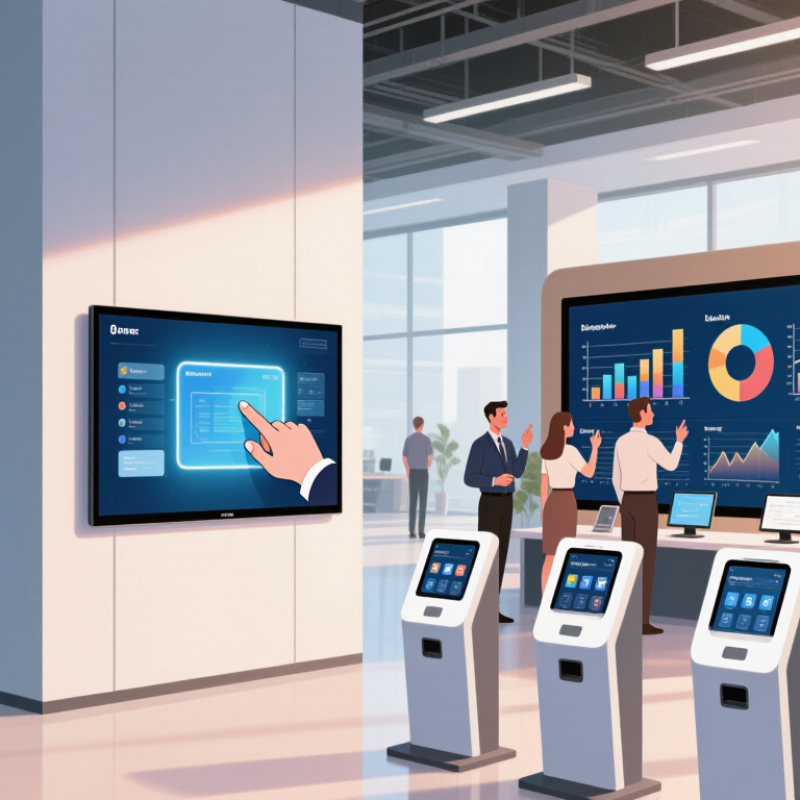
In 2026, an interactive screen is best defined by what users can do with it, not by its size. A display qualifies when it accepts input through touch, a stylus, gesture, or connected controls, then responds visibly. That response might open a menu, mark up a floor plan, or update a shared dashboard. Simple. For classification, separate input method from form factor and setting. Common types include classroom and meeting-room panels, self-service kiosks, touch tables, and collaborative walls. Boundaries remain fuzzy. Some systems combine several input methods, while glare, user reach, and room layout can change which one works well.
Grand View Research estimated the global interactive display market at USD 45.88 billion in 2023. Its market analysis forecast an 8.6% compound annual growth rate from 2024 to 2030. This signals expanding investment, but it does not establish a universal ranking of screen types. Classify a device by its main task: wayfinding, hands-on learning, or group annotation. Then assess response speed, visibility, and ease of use. Real rooms are messier than specification sheets. A technically interactive panel can still feel passive when its controls are awkward or its interface is difficult to reach.
What Sets Interactive Touch Displays Apart
Interactive touch displays differ from ordinary screens because they turn viewing into direct action. A user can enlarge a diagram, move a map, or write notes without a mouse. This immediacy is useful in classrooms, design reviews, clinics, and public information spaces. The feel depends on more than a responsive panel. Touch accuracy, low input delay, palm rejection, and support for several users all shape whether interaction feels natural. Small details matter. A stylus that skips near the screen edge can interrupt a lesson. Strong glare can make a sharp display difficult to read.
Common configurations in 2026 include interactive whiteboards, large-format flat panels, and self-service kiosks. Their roles differ, but shared displays should handle repeated taps, varied hand sizes, and accessible controls. In a meeting room, for example, one person might annotate a floor plan while another zooms in. That sounds simple. Yet software compatibility and screen placement often determine whether people use the touch features at all. Check viewing height, cleaning needs, connection options, and glare in the actual room. A bright showroom demonstration may hide reflections or awkward reach. A practical evaluation should test a real task, not just a few colorful icons.
How Interactive Whiteboards Support Collaborative Work
Interactive whiteboards turn a meeting wall into a shared working surface. Participants can sketch workflows, move digital sticky notes, and revise diagrams together instead of passively watching slides. Small details matter: a legible 4K display, responsive touch, and wireless sharing that works without setup delays. In practice, the best screen is one everyone can use.
Access can shape participation. The 2022 Work Trend Index reported that 43% of remote employees and 44% of hybrid employees felt excluded from meetings. A shared digital canvas gives remote colleagues a visible place to add ideas, while people in the room annotate the same work. It is not a cure.
For collaborative work, look for multi-user touch, handwriting recognition, searchable saved boards, and simple export options. These features help teams keep decisions after the room clears. Yet a large screen can still become a lecturer’s podium if one person controls it. Rotate facilitation, invite silent annotation, and leave time for everyone to review the board. This takes practice.
Where Interactive Kiosks and Self-Service Screens Are Used
Interactive kiosks are most useful when they remove a small point of friction. In retail stores, shoppers can check stock, compare product details, or find an aisle without waiting for assistance. At a grocery checkout, a clear screen and reachable card reader can make a quick basket easier to process. Small details matter. So does placement.
Airports and transit stations use self-service screens for ticket purchases, check-in, and directions. Travelers often have bags in hand and little time, so large touch targets and simple language help. Hotels may offer check-in kiosks for guests arriving late, while clinics can use them for appointment check-in or updating basic details. A screen should not expose personal information to people standing nearby. Privacy needs attention.
Restaurants and campuses also use ordering and information kiosks, especially during busy periods. Yet adding a screen does not automatically improve service. If menus are hard to navigate, or the device is out of reach, people may need staff anyway. That is not a failure of the user. Operators should test screens with different users, keep instructions readable, and check that printers, scanners, and touch controls work reliably. A helpful kiosk supports human service; it does not replace every conversation.
How Interactive Video Walls Enable Shared Experiences
Interactive video walls turn a large display into a shared activity, not just a bigger screen. In a museum, visitors might move colored shapes across a projected map. In a conference space, people can add questions to a live discussion board. Each person contributes, while the group sees the result change in real time.
That shared view matters. People can point, compare ideas, and respond to one another without crowding around a small device. Touch, motion, or mobile input can make participation easier, but the interaction should stay clear from a few steps away. Use large visual cues, readable text, and brief instructions. Keep a non-touch option available. Not everyone wants to step forward.
Good installations also depend on practical details: viewing distance, room lighting, network reliability, and content moderation. Test with several people using the screen at once. Check whether someone at the edge can still follow the activity. A wall that reacts instantly feels inviting; even a short delay can make a group hesitate. That part is easy to underestimate. And sometimes a simple shared prompt works better than a clever interface.
Interactive Screen Setups: Panel Counts for Shared Experiences
A video wall combines display panels into one shared visual surface. Panel counts below are calculated from each layout’s rows × columns.
Panel count describes the physical layout, not screen size, resolution, or market share.
